
Sevginur Ak Parlak
Apr 29, 2024
4 min read
Using Variables on Figma: Case Study
When Figma first shared their new variables feature, it looked very complex. But once I used it in a real project, I found out it’s easy and really useful.
Most how-to videos focus on switching from dark to light mode with variables. I found out that variables can do much more. For a period tracker app, I used them to show different phases of the menstrual cycle. It turned out to be very effective.
Let’s talk about how I set the scene.

Color Styles:
Color styles are still my key. We start with building color styles:
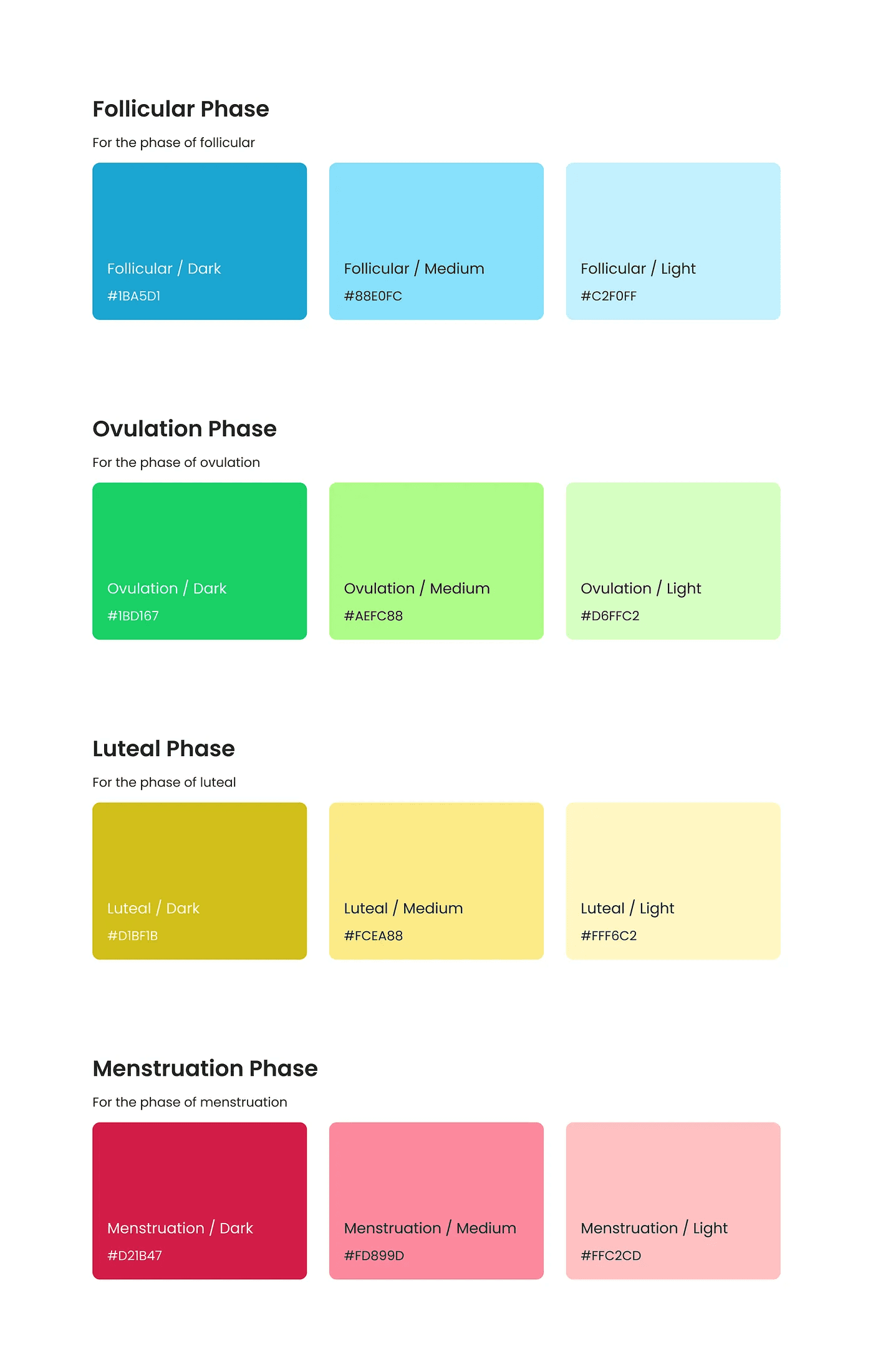
The colors I’ve showcased will serve as the basis for the variables. Alongside these, my design library also includes branding, neutral, and state colors.
Creating Variable Collection:
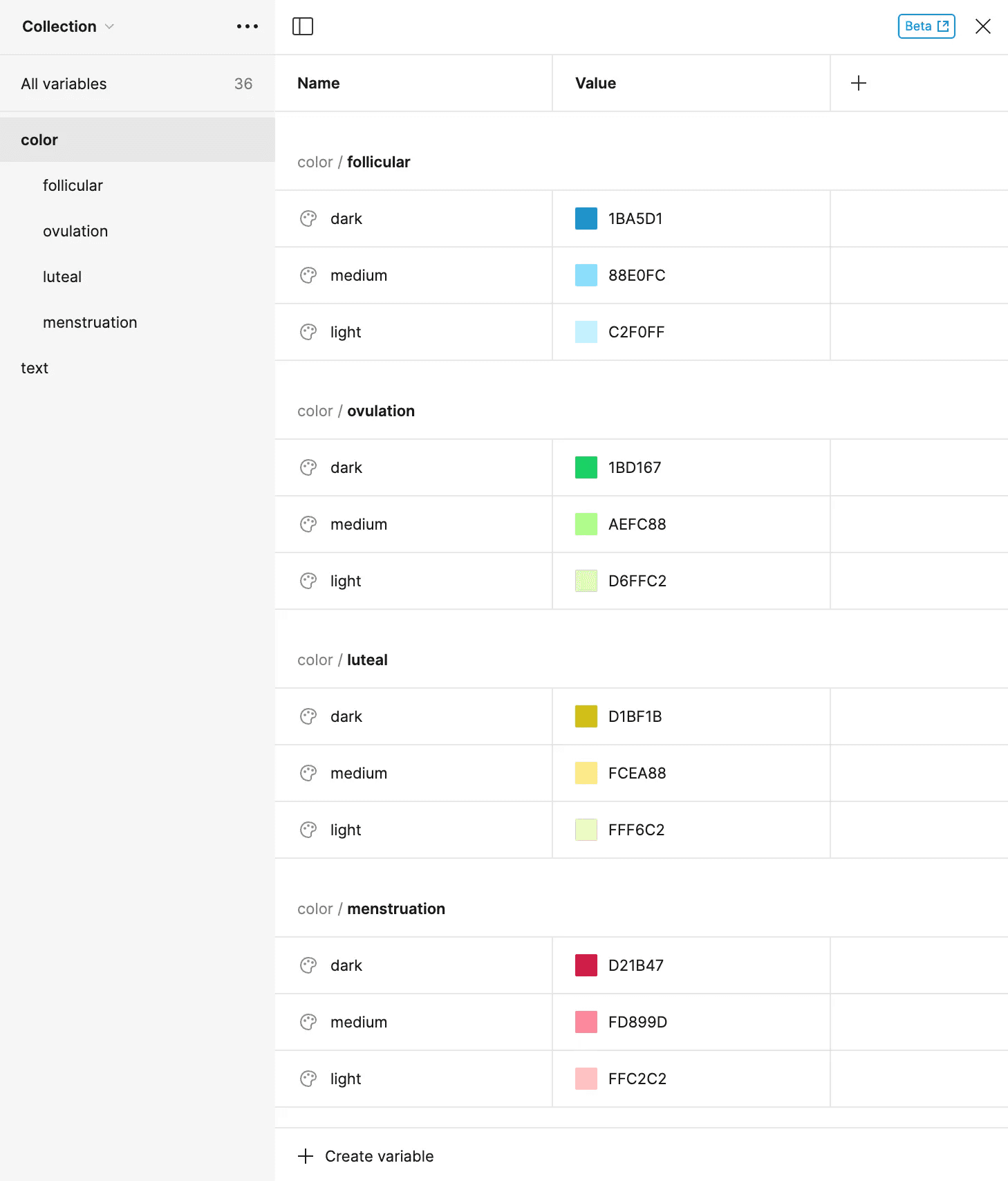
To start making my variable collection, I clicked on a blank space in my design library. Then, looked for ‘Local variables’ on the right panel. That’s where we’ll create our variable collection.
This is a job that takes quite a lot of effort. We are creating variable for every color style one by one using the color picker.
Create variable > Color > Name the variable > Pick color
A good tip is to use “/” in the name to organize them. In my case, I named my variables as follows:
color/follicular/dark
Creating Variable Tokens:
After the variable collection is set up, now it’s time to create a new collection called ‘Tokens’.
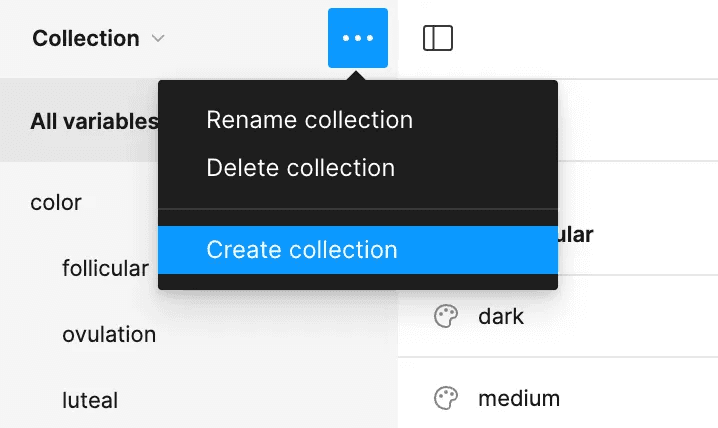
On tokens page, this time we are setting variable modes as the columns.
In my case columns are for phases of the menstrual cycle. Placed my variables in the chart, keeping colors of the same weight in one row and colors for the same phase in one column.

Setting variables on the design file:
Now, let’s apply our settings to the design file. We’ve done the prep in the design library; it’s time to bring those colors into our actual design.
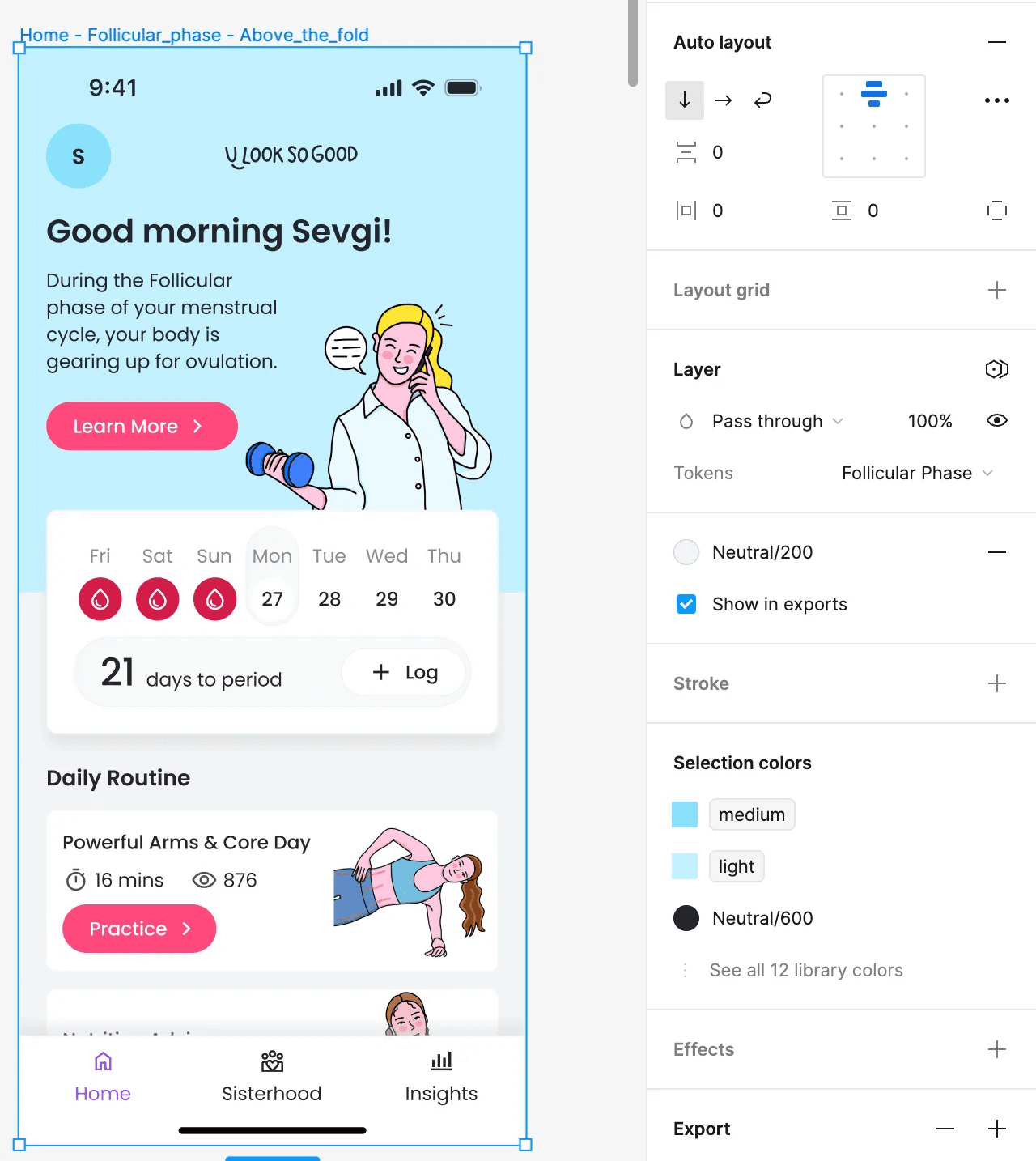
On my design screen, if I want an item’s color to change with different variable modes, I chose its color from the Tokens I created — like the light/medium/dark options — not from the color styles or directly from variables.
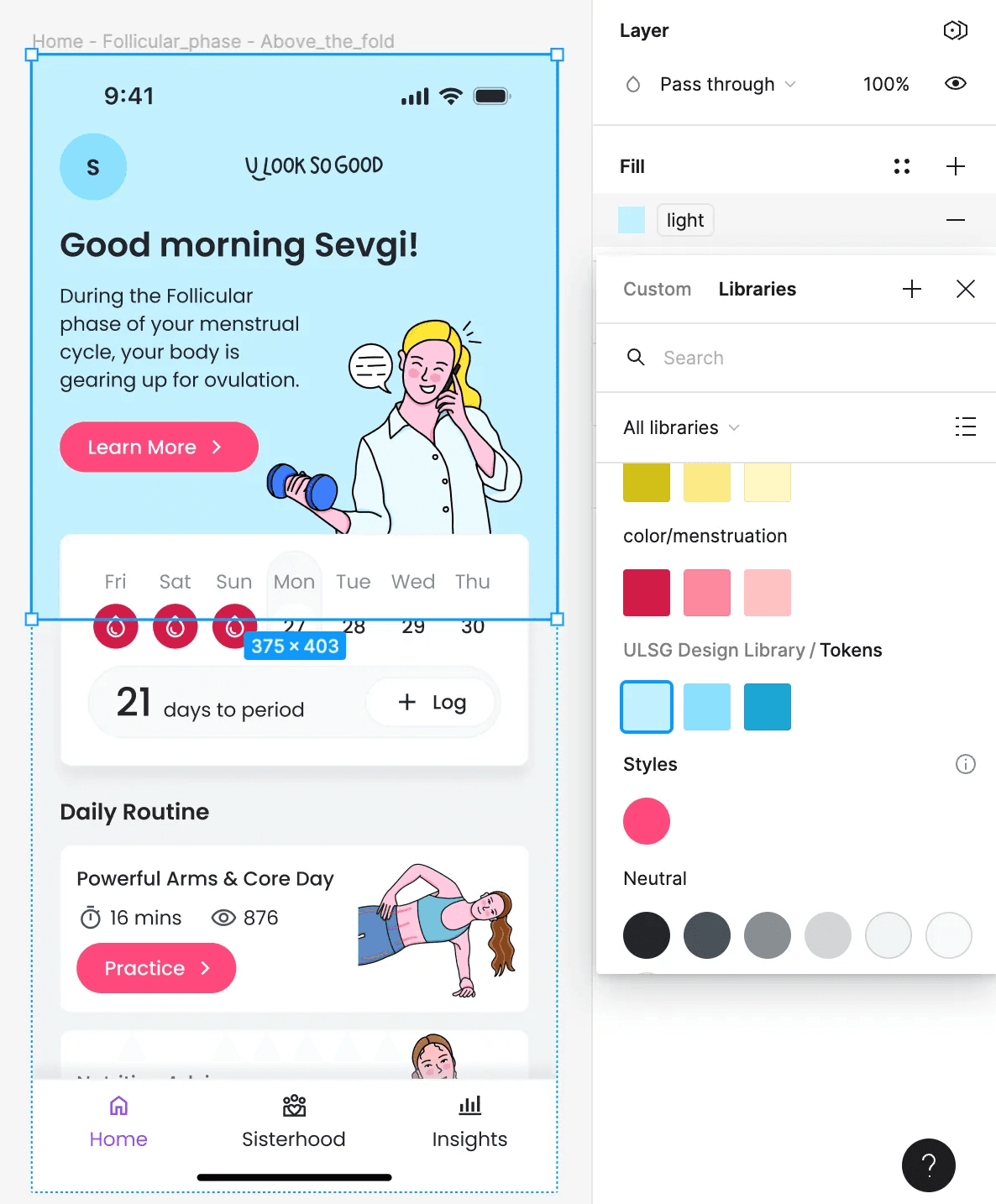
Apply this to all components that need variable colors. For me, this was only the background and avatar colors. I also adjusted text variables based on the menstrual cycle phases.
Finally:
Select the screen’s frame.
Go to layers section on the right panel.
Click on the ‘Change variable mode’ icon.
Pick a token for the frame from the token list.
Let’s see it on action!

After changing images and other contents according to phases, the design is ready:
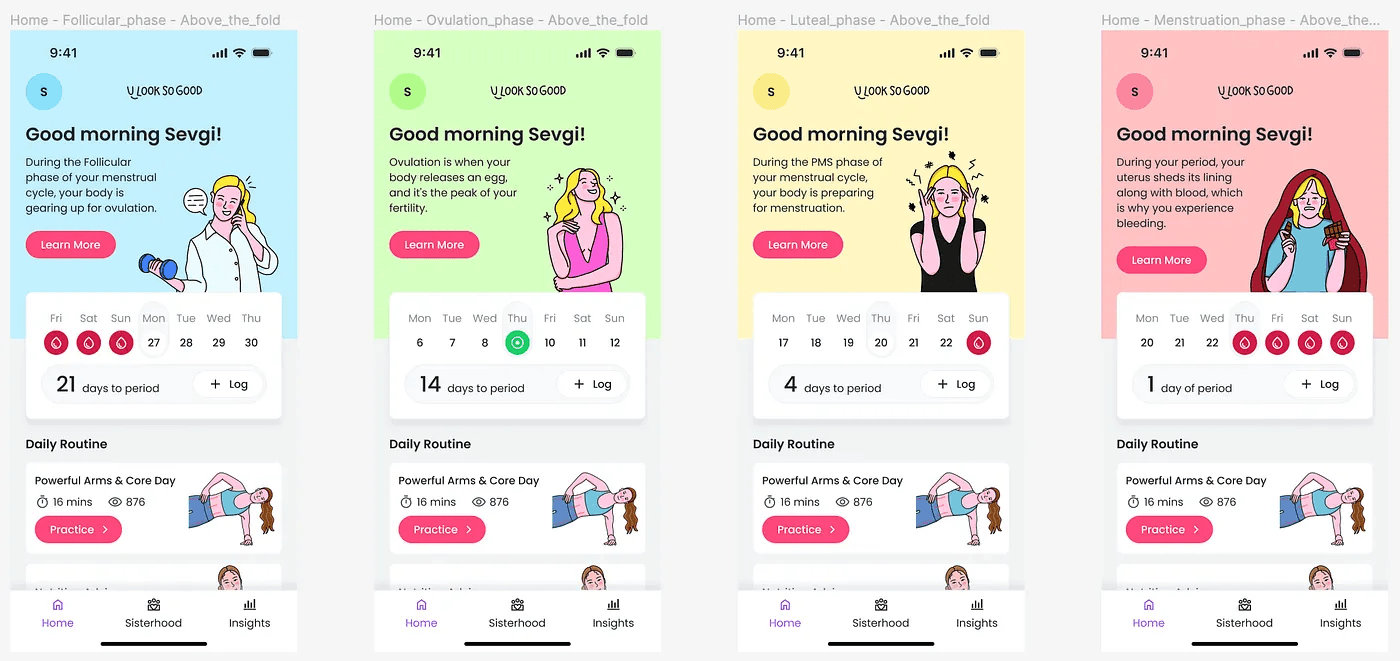
To wrap up, using Figma’s variables made my design work much easier, especially for the period tracker app. It helped me change designs quickly and accurately for different cycle phases.
This shows how new tools can make designing better and more fun. I hope my story encourages other designers to try out variables in their projects too.
Thanks for reading.
